· How To · 4 min read
How to Scan a QR Code from a Photo or Screenshot with Qrblox (2025 Guide)
Step-by-step guide to scanning QR codes from your camera roll, screenshots, or saved images using Qrblox — plus native iOS/Android alternatives.
How to Scan a QR Code from a Photo or Screenshot with Qrblox
You’re browsing a website on your phone and see a QR code. Or someone sends you a screenshot with a QR code. Or you took a photo of a QR code at a restaurant but didn’t scan it in the moment.
Good news: You don’t need to print it out or load it on another device. Here’s how to scan QR codes from photos, screenshots, and your camera roll — with Qrblox and with built-in phone features.
Method 1: Scan from Photo with Qrblox (Recommended)
Qrblox makes this incredibly simple and gives you extra features native scanning doesn’t: scan history, safety previews, and audio handshake sharing.
Step-by-Step:
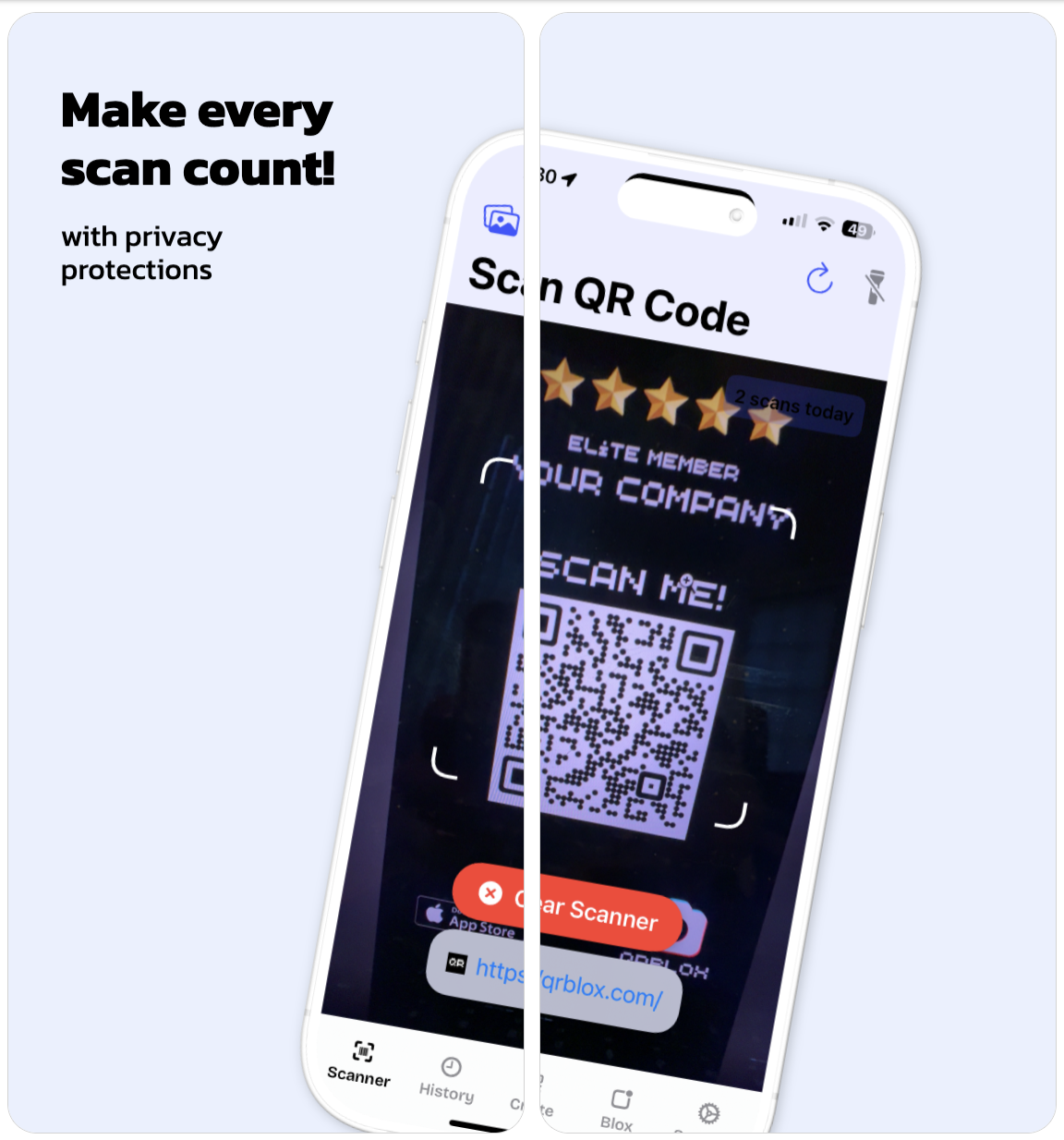
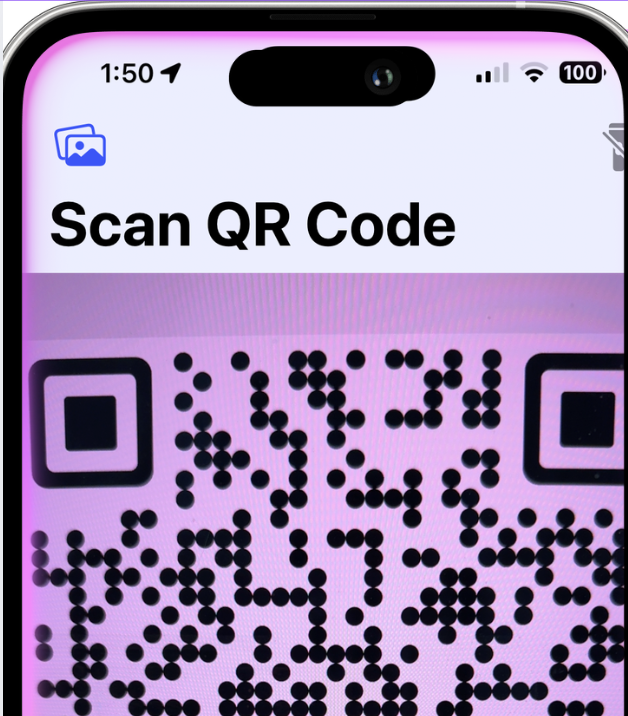
- Open the Qrblox app — it opens directly to the scanner view
- Tap the image/gallery icon in the top-left corner of the scanner screen
- Select your photo or screenshot from the gallery
- Done! Qrblox instantly detects and decrypts the QR code
Why Use Qrblox for This?
| Feature | Native iOS/Android | Qrblox App |
|---|---|---|
| Scan from camera roll | ✅ | ✅ |
| Scan from screenshots | ✅ | ✅ |
| Save to scan history | ❌ | ✅ |
| Safety preview (see URL before opening) | ❌ | ✅ |
| Audio handshake sharing | ❌ | ✅ |
| AI follow-up chat about the scan | ❌ | ✅ |
| Gamified streaks & analytics | ❌ | ✅ |
| Works offline (history stored locally) | ❌ | ✅ |
Method 2: Native iOS (iPhone/iPad) — Live Text
Since iOS 15, Apple’s Live Text feature can detect QR codes in any photo or screenshot.
Steps:
- Open the Photos app and find the image with the QR code
- Tap the Live Text button (icon with lines of text in a frame) in the bottom-right corner
- The QR code will be highlighted — tap it
- Follow the prompt to open the link, add contact, connect to Wi-Fi, etc.
Note: Live Text works on iPhone XS/iPhone XR and later (iOS 15+). For older devices, use Qrblox or Google Lens.
Method 3: Native Android — Google Lens / Google Photos
Most Android phones have Google Lens built in, accessible through Google Photos or the Camera app.
Via Google Photos:
- Open Google Photos and find the image
- Tap the Lens icon (square with a dot) at the bottom
- Google Lens will analyze the image and detect the QR code
- Tap the result to take action
Via Camera App (Pixel & many others):
- Open your Camera app
- Switch to Lens mode (often a dedicated button or in “More” modes)
- Select “Search with your camera” → choose the image from gallery
- Tap the detected QR code result
Method 4: Qrblox Web Scanner (No App Install)
If you’re on desktop or don’t want to install an app, use the Qrblox web scanner:
- Visit qrblox.com/scan on any browser
- Click “Upload Image” or drag & drop your screenshot/photo
- The QR code is scanned instantly in your browser — no upload to servers, all client-side
Privacy note: Qrblox web scanning processes images entirely in your browser using WebAssembly. Your photos never leave your device.
Pro Tips for Scanning from Photos
1. Screenshot Quality Matters
- Make sure the QR code is in focus and not blurry
- Avoid heavy compression (don’t send via WhatsApp/Telegram “save data” mode if possible)
- Crop the screenshot to just the QR code area if detection fails
2. Lighting & Contrast
- QR codes need high contrast (black on white works best)
- If the photo is dark, increase brightness in your photo editor before scanning
- Avoid glare or reflections on the QR code
3. Partial QR Codes
If only part of the QR code is visible in the photo:
- Qrblox’s Reed–Solomon error correction can often recover data from up to 30% damage
- Native scanners may fail — try Qrblox first
4. Multiple QR Codes in One Image
- Qrblox can detect and list multiple QR codes in a single image
- Native iOS/Android typically only finds the first/largest one
Common Scenarios & Solutions
| Scenario | Best Method |
|---|---|
| QR code on a website you’re browsing | Screenshot → Qrblox gallery scan |
| Friend sent QR code via text/DM | Save image → Qrblox or Live Text/Lens |
| Photo of QR code from days ago | Photos app → Qrblox (has history!) |
| QR code on laptop screen, you’re on phone | Photo of screen → Qrblox |
| Need to scan but no internet | Qrblox works offline for history |
| Want to share the QR code via sound | Only Qrblox has Audio Handshake |
Why Qrblox Is the Best Choice for Photo Scanning
Beyond just “it works,” Qrblox adds value after the scan:
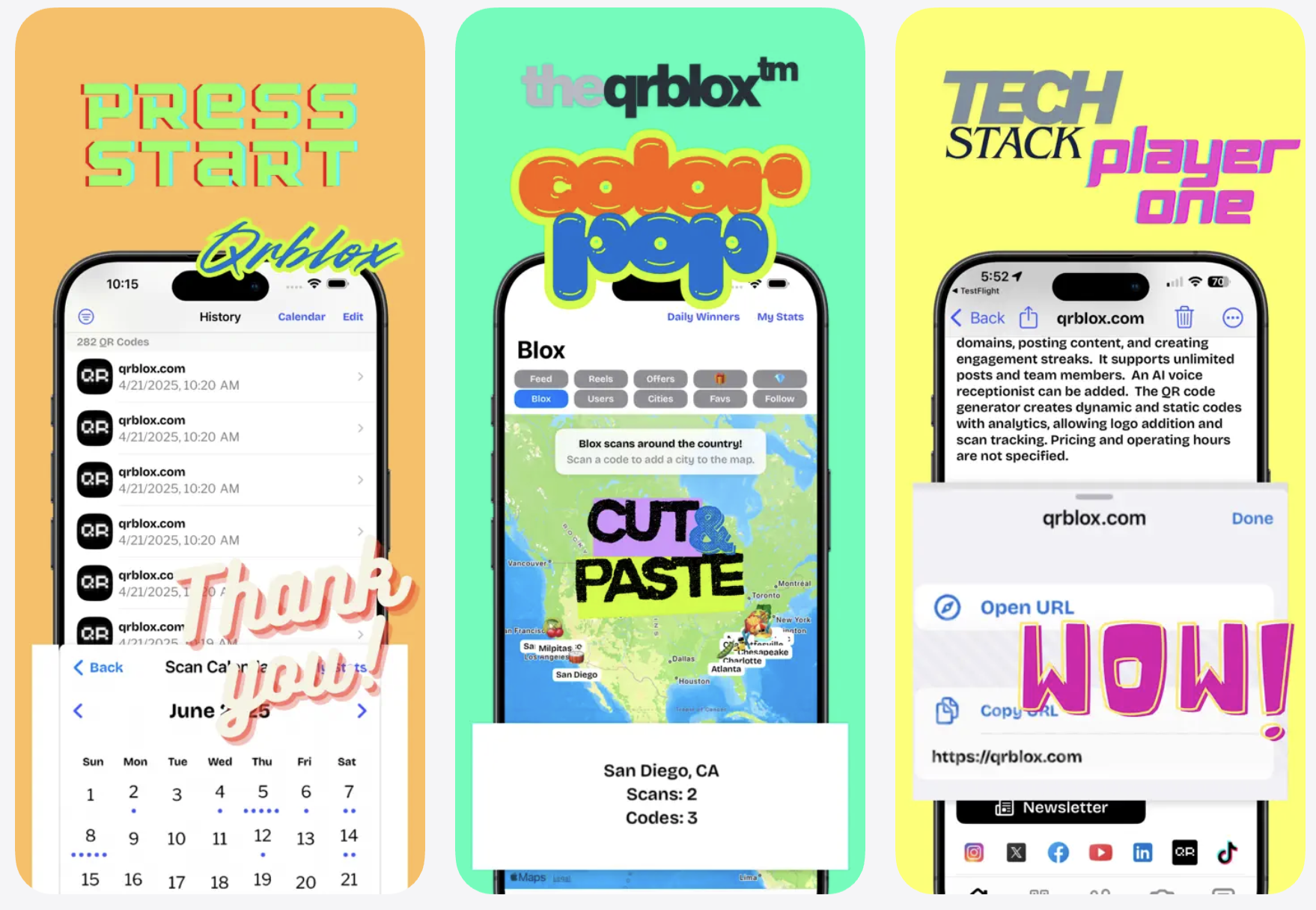
- Every scan is saved — build a searchable history of every QR code you’ve ever scanned
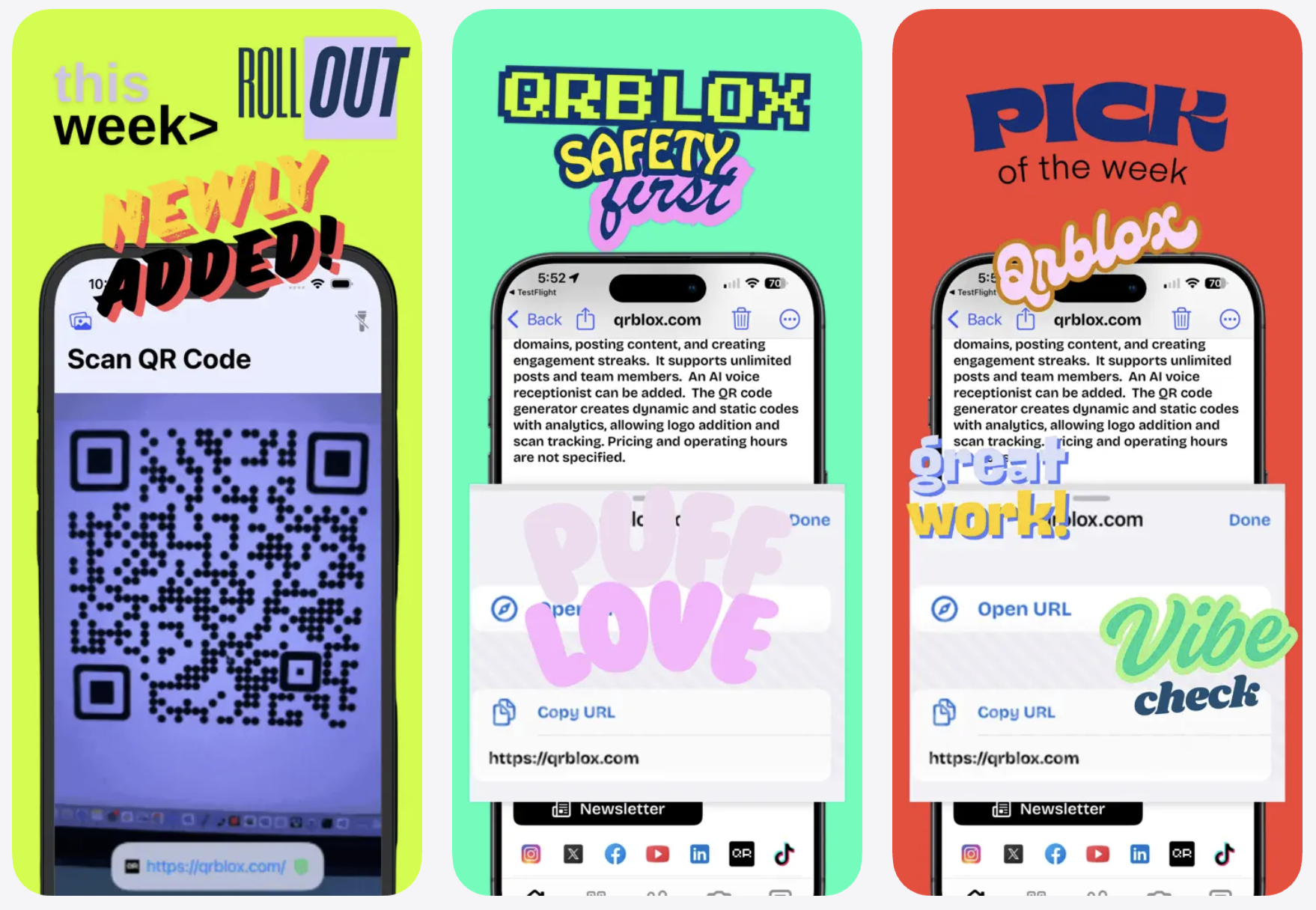
- Safety first — see the full URL, check for redirects, verify the domain before you tap
- Share via sound — use Audio Handshake to beam the QR code to someone nearby without showing your screen
- AI context — tap any past scan to start an AI chat about that link, product, or contact
- Streaks & stats — gamified scanning keeps you engaged and shows your scanning patterns
Try It Now
Scan smarter with Qrblox
History, safety previews, audio sharing, AI chats — all free.