· How-to · 4 min read
How to Make a Circular QR Code (Print Checklist)
Use the free Qrblox round QR code generator — the same circular QR code generator — then follow size, contrast, and quiet-zone rules so the round QR still scans.
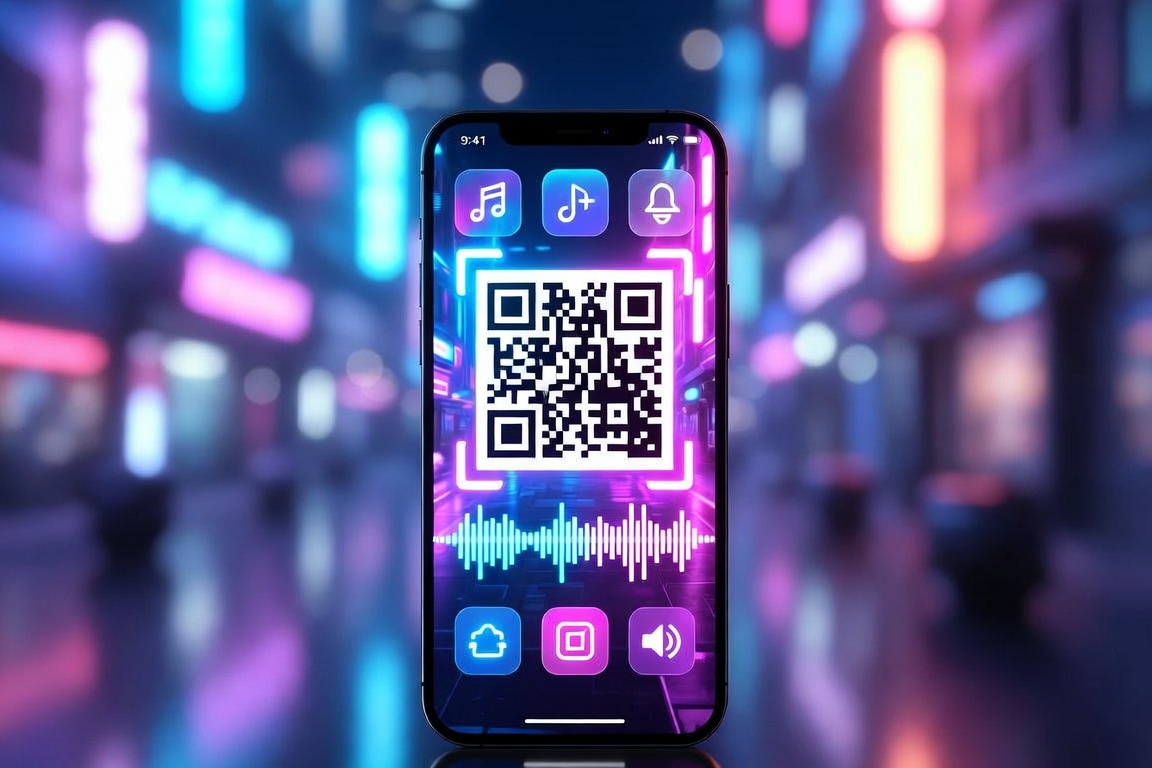
You want a round QR code — also called a circular QR code — that looks designed and still scans on every phone. Use the free Qrblox round QR code generator (the same circular QR code generator) for the 30-second build, then follow the print checklist.
Make it now: Round QR Code Generator — paste your link, keep Round selected, download a free 1024px PNG. No signup, no watermark. Same circular QR code generator at /circular-qr-code-generator.
How to make a circular QR code — 3 steps
1) Paste your link — watch the circle fill live
Open the circular QR code generator. Paste any URL — website, menu, Google review, Instagram, PayPal/Venmo, Wi-Fi, vCard contact, or plain text. The dots flow to the circular edge instantly. The three corner finder eyes and the white quiet zone stay intact — that is what cameras read.
2) Pick a template and color
- Seal / Safety Seal — classic circular badge, good for packaging
- Hex / Sound Hex — geometric, modern
- Product Label — circular disc with title + footer text
- Coin — metallic gold, premium
- Glossy Button — raised, app-like
- Plain — just the circular dots, no ring. Optional border slider for a solid outline
- Gradient — the same dots with a slim candy-colored rim
Use Frame Style tints to match your brand. Candy gradient is the default; fixed tints (red, blue, purple, etc.) or a custom hex work too.
3) Download or save as dynamic
- Download PNG — free 1024px PNG, print-ready, no signup.
- Save & track on web — stores a dynamic code in Qrblox. Edit the destination later without reprinting and see scan analytics.
Print checklist — so your circular QR code scans every time
| Rule | Why | Do this |
|---|---|---|
| Size | Too-small circles blur and fail | ≥ 2 cm diameter (0.8 in) for close scans; 3–4 cm for shelf labels viewed at arm’s length. Billboards/posters scale up proportionally. |
| Contrast | Cameras need dark-on-light edges | Dark dots on white. No light-on-dark inversion, no low-contrast pastels for the dots. |
| Quiet zone | Cameras need white breathing room | Keep the built-in white ring — never overlay text, logos, or borders on it. |
| Shape | Stretching destroys modules | Never stretch the circle into an oval. Export at 1:1 and print at 1:1. |
| Error correction | Dense/long URLs fail smaller | Shorten your link (or use the dynamic Qrblox link) — shorter URL = fewer modules = bigger dots = more forgiving. |
| Logo | Logos can cover data | Do not overlay a logo on the data area. Use the Product Label footer text or place your mark just outside the quiet zone. |
| Test before bulk | Catches scale problems early | Print one copy on the actual stock, scan with iPhone + Android at real viewing distance. If it is slow, make it larger or shorten the URL. |
SVG, vector, and foil stamping
The free download is a 1024px PNG. For true press/vector:
- Save & track on web on the generator page.
- Open your Qrblox dashboard — export SVG/EPS there. The circular artwork scales without pixelation for foil, emboss, and spot UV.
For stickers and labels the PNG at 300 DPI prints clean up to about 8–9 cm diameter. Larger than that, use the vector export.
Circular vs square — when to pick which
- Circular / round QR code: Round surfaces (jar lids, bottle caps, vinyl), circular stickers and seals, invitations where the code is part of the design.
- Square QR code: Tight rectangles, dense data, or minimal design — use the Free QR Code Generator instead.
Both can be dynamic and trackable.
Common mistakes that break circular QR codes
- Pasting a square QR onto a circle background and calling it circular — wastes space, no rim ring, looks pasted.
- Adding a large logo over the center — covers data modules.
- Using a color frame but light-gray dots — kills contrast.
- Shrinking below 2 cm — dots merge when printed.
- Stretching to fit a rectangular label — turns the circle to an oval and fails.
FAQ
Do circular QR codes expire? A downloaded PNG (static) never expires — it points at the URL encoded in the dots. A dynamic Qrblox circular QR code also never expires and you can re-point it later.
Can I make a circular QR code on my iPhone? Yes — the Qrblox iOS app has the same Round shape for circular codes with all templates plus scan sounds and boost frames.
Will a circular QR code work on Canva? Yes — generate it, download PNG, drop it into Canva, or use Qrblox for Canva for dynamic codes inside your designs.
Ready? Open the round QR code generator. Prefer a square code? Free QR code generator.